Make games for
keypad phones.
Build a little world, give it a keypad, and turn it into a game you can carry in your pocket.

A workbench for Java ME
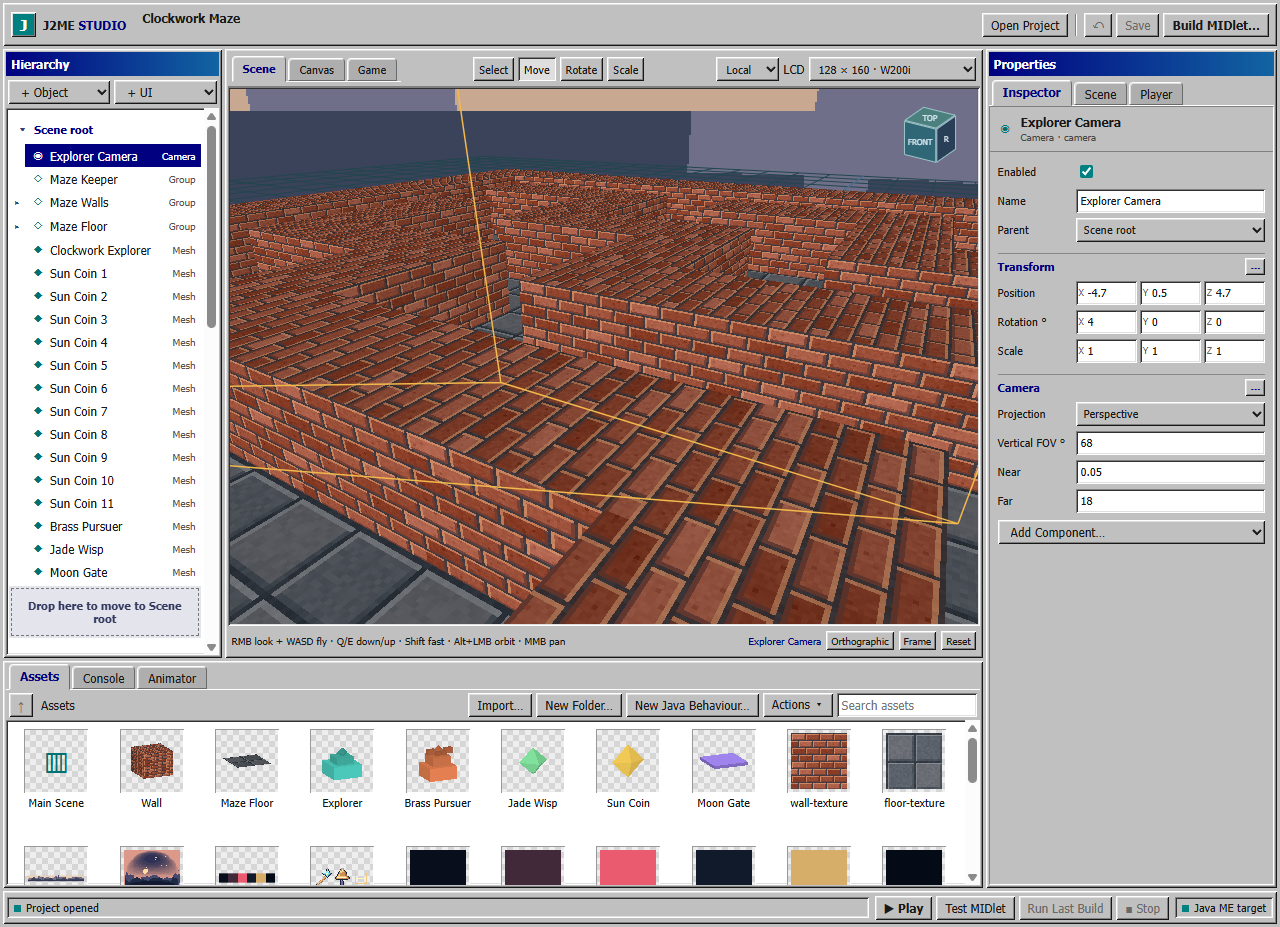
Studio brings a scene editor, a Canvas UI designer, and a MIDlet builder into one Windows app. Arrange a 3D scene, wire up the number keys, and see how it feels on a tiny screen.
Example projects
Pick a project and open its .j2meproj file in Studio 0.8.7. Each one includes the scenes, artwork, and code so you can make it your own.
 Download all 6 projectsZIP · 52 KiB
- Download
Checkpoint Run
Start small. Move a checker tile to the gold goal, then change the scene to move the finish line.
- Download
Clockwork Maze
Explore a first-person maze and see how a Java behaviour handles coins, enemies, and the exit gate.
- Download
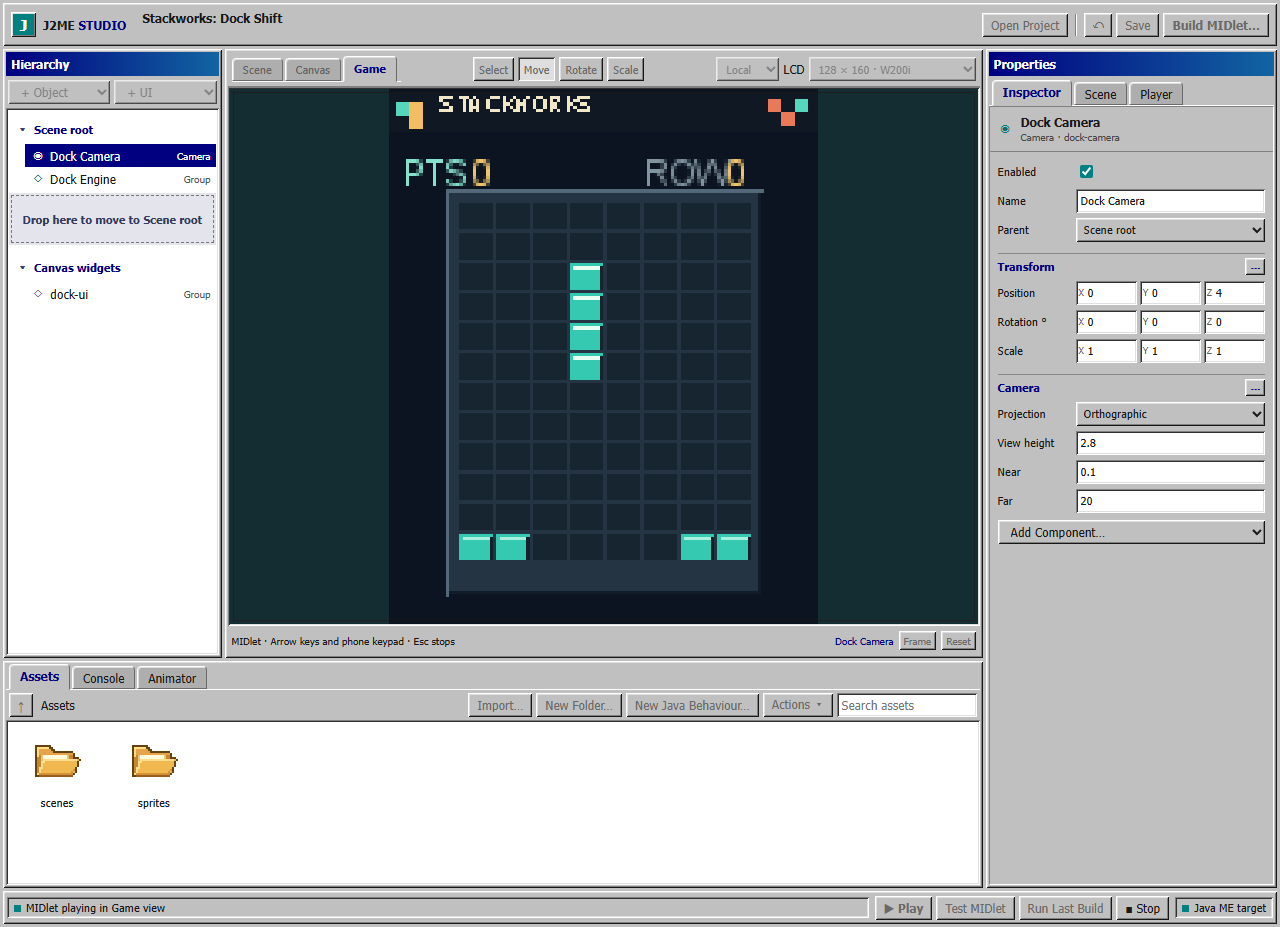
Stackworks
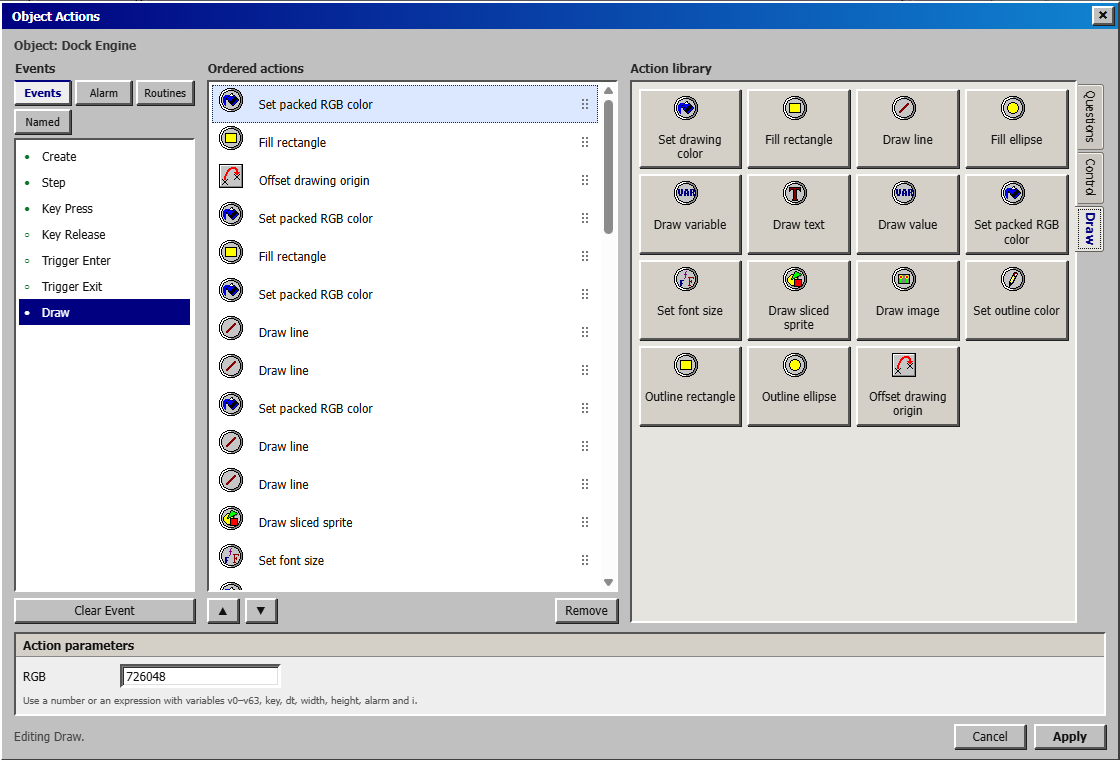
Rotate falling cargo to clear the dock. Open Dock Engine’s Visual Actions to see how a whole puzzle fits on a 128 × 160 screen.
- Download
Canvas Menu
Give Checkpoint Run a title screen. Try the Play and Controls buttons, then inspect how the keypad moves focus.
- Download
Authoring Workbench
Explore the Relay Workbench scene, with a rotated gantry, a pilot-name field, and sound cues for the start and goal.
- Download
Optimized Geometry
See how three pieces in a scene can share one tile mesh and checker texture.
Inside the editor
Take a closer look at two of the example games that come with Studio.
Your first scene
Start with a cube. You can get it on screen before setting up the phone toolchain.
Follow the first-project guide- Create a project
Open Studio, choose File → New Project…, and give your game a filename.
- Make a change
Select the cube in the Hierarchy. Move it with the transform tools, then press Save.
- Try it out
Press Play to preview the starter scene. When you’re ready to export, set up the Java ME tools.
 Downloads
Download J2ME Studio
Version 0.8.7 for 64-bit Windows. Includes the editor and all 6 example projects. Open First steps in Studio to set up the compiler, toolkit, and phone emulator.
Download installerWindows x64 · 111.7 MiB · SHA-256