Download

Wiki / Editor manual
Find your way around Studio
A quick tour of the Hierarchy, Scene and Canvas views, Inspector, and bottom dock.
Scene workspace
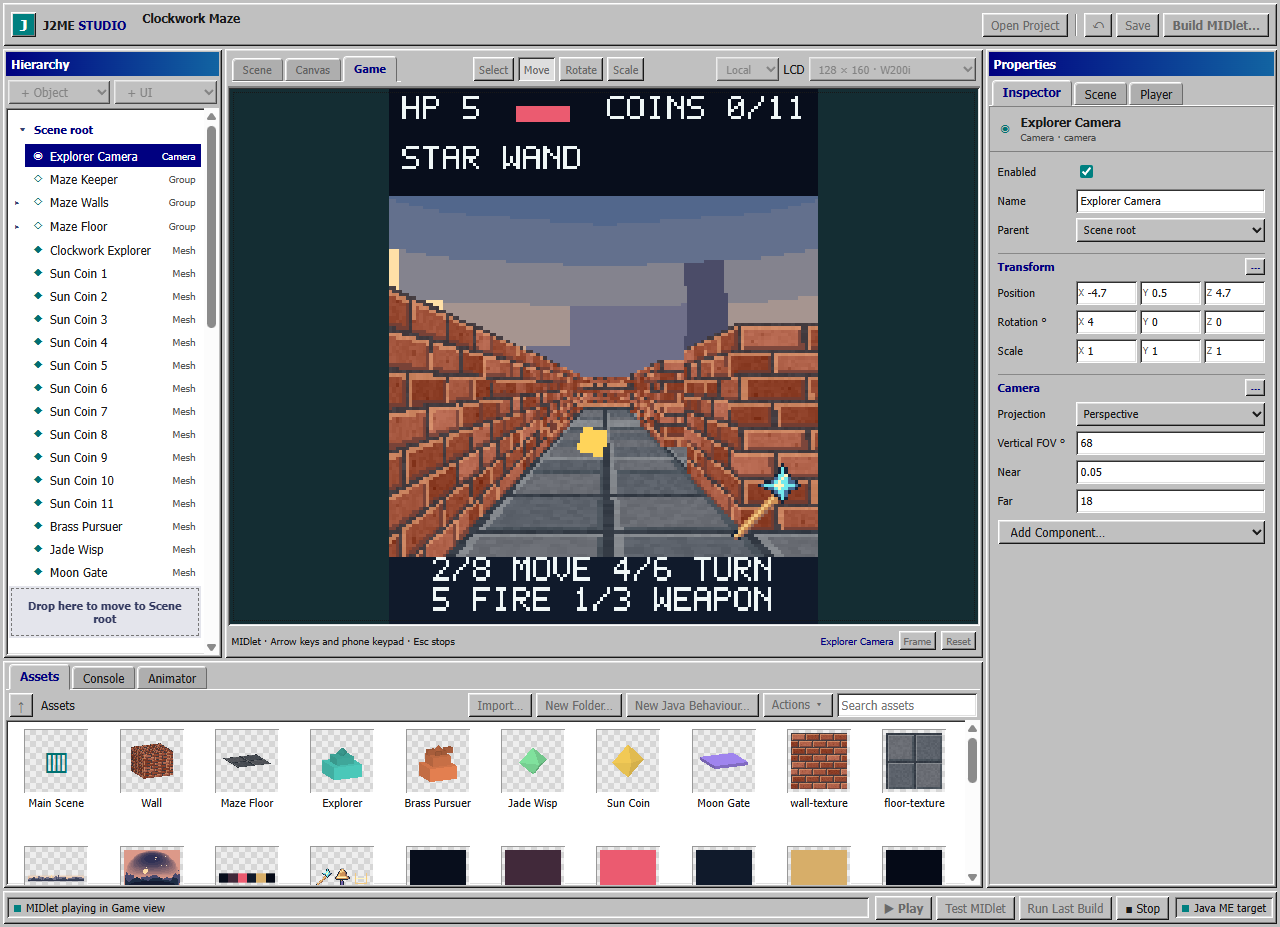
The Hierarchy lists scene objects and Canvas widgets. + Object adds an Empty, Cube, or Camera. The center tabs are Scene, Canvas, and Game. In Scene, the tools are Select, Move, Rotate, and Scale; Local/Global chooses the transform space. Frame focuses the selection and Reset restores the view. LCD changes the preview dimensions.
The Inspector tab edits the selection. Scene opens scene settings and Player contains MIDlet settings. The bottom dock switches between Assets, Console, and Animator. The toolbar's Save, Build MIDlet…, and bottom Play buttons are the main save, export, and preview commands.
See a game running
Download clockwork-maze.j2meproj below and double-click it, or choose File → Open Example Project… in Studio. With the build tools and emulator installed, press Play. Press a number key to leave the title screen. Keys 2 and 8 move you through the corridors, and 4 and 6 turn. The screenshot shows the maze running in the editor’s Game view.
 Download Clockwork Maze (.j2meproj)